
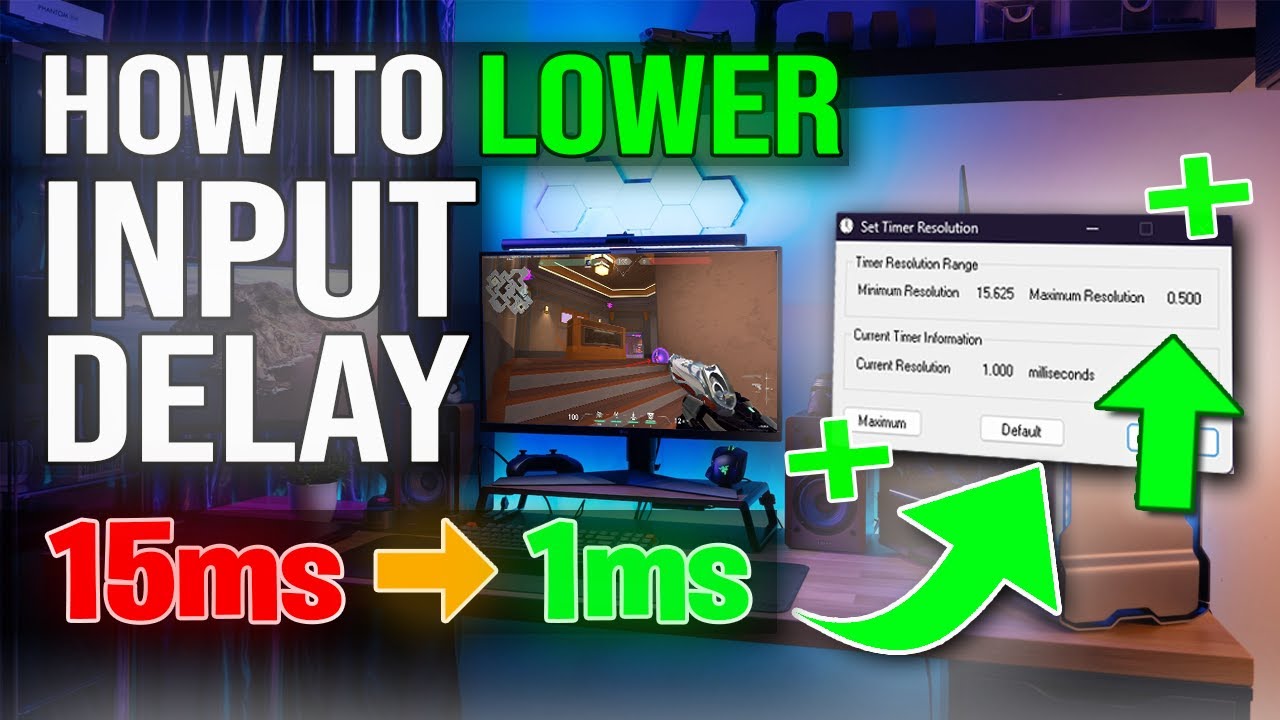

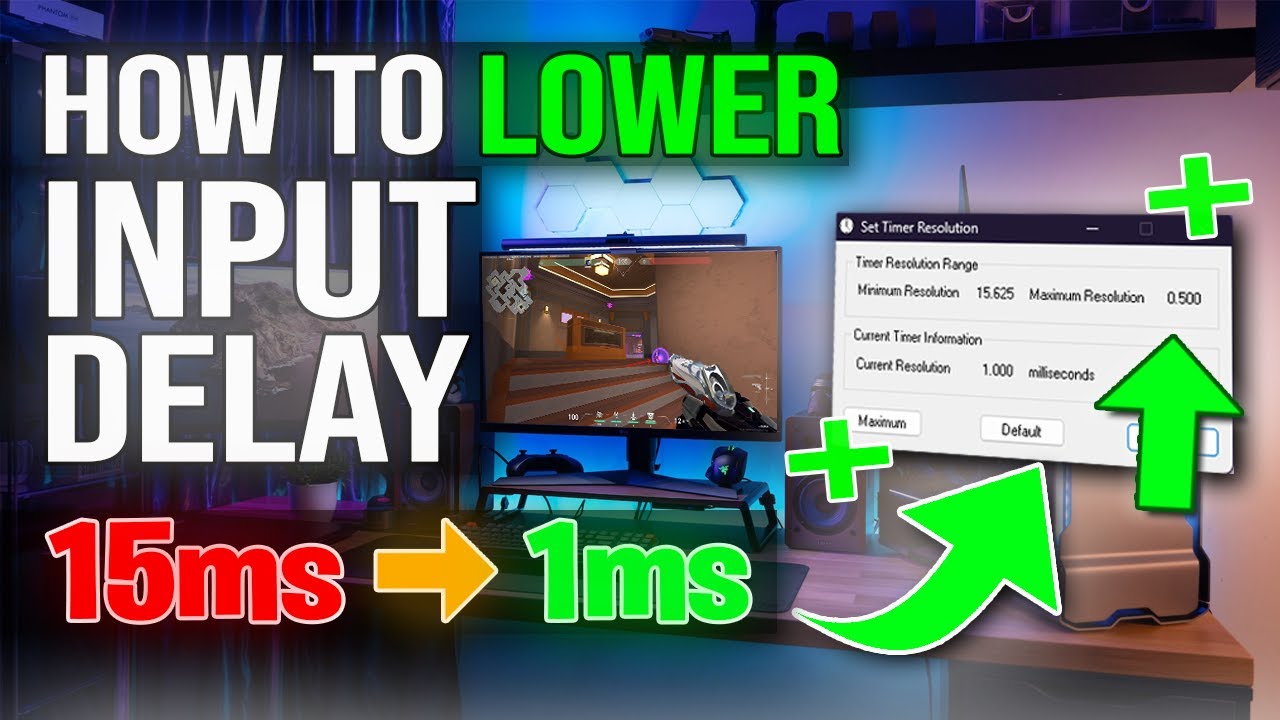
In the world of gaming, input lag can be a frustrating obstacle, especially in fast-paced competitive environments. Whether you’re playing a first-person shooter, a fighting game, or a racing sim, the delay between your input (mouse, keyboard, or controller) and the on-screen action can affect your performance and enjoyment.
This article will explore what input lag is, what causes it, and most importantly, how you can reduce input lag for smoother, more responsive gameplay. From optimizing settings to upgrading hardware, we’ll cover practical steps that make a measurable difference.
What Is Input Lag?
Table of Contents
Input lag refers to the time delay between a user input (such as clicking a mouse or pressing a button) and the result of that action appearing on screen. It is usually measured in milliseconds (ms). Lower input lag results in more immediate feedback and a smoother gaming experience.
There are three main components where input lag can be introduced:
-
Peripheral Delay: Latency from devices like keyboards, mice, or controllers.
-
System Delay: Time taken by the CPU, GPU, and software to process inputs and render frames.
-
Display Delay: Latency from the monitor or TV before showing the rendered frame.
Your goal should be to minimize delay at every stage of the input pipeline.
1. Optimize Your Display Settings
Use a Low-Latency Monitor
The display is often the largest contributor to input lag. Standard office monitors or TVs can have input lag over 30ms, which is noticeable in gaming.
What to look for in a gaming monitor:
-
High Refresh Rate: 120Hz, 144Hz, 240Hz, or higher.
-
Low Response Time: Preferably 1ms or less (GtG or MPRT).
-
Low Input Lag Mode / Gaming Mode: Always enable this feature on your monitor or TV.
Disable V-Sync
V-Sync synchronizes your frame rate with your monitor’s refresh rate to prevent screen tearing, but it also introduces significant input delay.
Recommended alternative: Use G-Sync (NVIDIA) or FreeSync (AMD), which provide smoother visuals with much lower latency than V-Sync.
2. Adjust In-Game Settings for Low Latency
In-game graphics settings affect how quickly frames are processed and displayed. High graphical fidelity can cause input delay if your system can’t keep up.
Key Settings to Tweak:
-
Limit or unlock frame rate: Cap your FPS slightly above your monitor’s refresh rate, or unlock it for lower latency.
-
Lower graphic settings: Reduce shadows, anti-aliasing, post-processing, and texture quality if your system struggles.
-
Disable motion blur: Adds artificial delay to visual perception.
-
Enable “Low Latency Mode” (NVIDIA/AMD): Forces pre-rendered frames to be minimized, improving responsiveness.
For NVIDIA GPUs:
Go to NVIDIA Control Panel > Manage 3D Settings > Low Latency Mode
Set to “Ultra” for best input responsiveness.
For AMD GPUs:
Use Radeon Anti-Lag through the Radeon Software.
3. Upgrade to High-Performance Peripherals
While the graphics card and monitor get a lot of attention, your input devices also matter. Cheap or wireless devices can add unwanted delay.
Mouse:
-
Use a wired or low-latency wireless gaming mouse.
-
Look for high polling rates (1000Hz or higher).
-
Ensure zero mouse acceleration is enabled in Windows and in-game.
-
Use a mouse with a proven low click latency.
Keyboard:
-
Mechanical keyboards tend to have lower input latency than membrane keyboards.
-
Opt for linear switches (e.g., Cherry MX Red, Gateron Yellow) for faster actuation.
Controller:
-
Use wired controllers to eliminate Bluetooth latency.
-
For wireless controllers, use models with low-latency wireless tech (like Xbox Series X controllers with official dongle).
-
Disable features like vibration to reduce processing delay.
4. Increase Your Frame Rate (FPS)
The higher your FPS, the lower the time between when a frame is generated and when it’s displayed. In general:
-
60 FPS = ~16.6 ms delay between frames
-
120 FPS = ~8.3 ms delay
-
240 FPS = ~4.1 ms delay
This doesn’t mean the input delay is exactly those numbers, but it directly affects perceived smoothness and responsiveness.
How to boost FPS:
-
Lower in-game resolution
-
Tweak graphics settings (especially shadows, lighting, and effects)
-
Overclock GPU (if you’re comfortable and it’s supported)
-
Close background applications to free up system resources
5. Tweak System and Driver Settings
Your PC operating system and drivers can introduce delays if not optimized.
Windows Settings:
-
Disable Mouse Acceleration:
-
Control Panel > Mouse > Pointer Options > Uncheck “Enhance pointer precision”
-
-
Set Power Plan to High Performance:
-
Settings > Power & Sleep > Additional Power Settings > Choose “High Performance”
-
-
Disable background applications that hog resources
-
Use Task Manager to identify performance bottlenecks
-
Update Drivers:
-
Always keep your GPU drivers updated through NVIDIA GeForce Experience or AMD Radeon Software.
-
Update motherboard chipset and USB drivers, which can impact controller or peripheral response.
6. Use a Fast and Stable Internet Connection
For online multiplayer games, input lag is often confused with network lag, but both affect responsiveness.
Tips to reduce network delay:
-
Use wired Ethernet instead of Wi-Fi for lower latency and better stability.
-
If Wi-Fi is necessary, use Wi-Fi 6 or Wi-Fi 6E routers for reduced ping and jitter.
-
Close bandwidth-heavy applications (like video streaming or large downloads).
-
Choose game servers closest to your physical location.
-
Enable QoS (Quality of Service) settings in your router to prioritize gaming traffic.
Keep in mind: While this doesn’t reduce local input lag, poor network latency can make your inputs appear delayed due to server lag.
7. Reduce System Latency with NVIDIA Reflex or AMD Anti-Lag
Modern GPUs from NVIDIA and AMD include features designed specifically to reduce end-to-end latency in games.
NVIDIA Reflex:
-
Supported in titles like Valorant, Fortnite, Call of Duty, Apex Legends, and more.
-
Reduces both rendering and input latency by syncing the GPU and CPU pipeline.
-
Enable it from the in-game settings menu (when available).
AMD Radeon Anti-Lag:
-
Similar function to NVIDIA Reflex.
-
Can be enabled through Radeon Software and works in most games.
These tools are highly effective in reducing latency during CPU-bound scenarios or heavy rendering loads.
8. Choose the Right Cable and Ports
Believe it or not, cable quality and type can influence display latency.
Display Connection Tips:
-
Use DisplayPort or HDMI 2.0/2.1 cables for high refresh rates and low latency.
-
Avoid using HDMI through an AV receiver, which adds processing time.
-
On laptops, avoid mirrored displays or multiple monitors unless needed.
Always plug your monitor into the dedicated GPU port, not the motherboard’s integrated graphics (which is common on many desktop setups).
9. Use the Right Monitor Settings
Even the best monitor can introduce lag if misconfigured.
Monitor Tweaks:
-
Enable Game Mode or Low Input Lag Mode.
-
Disable image post-processing features (noise reduction, motion smoothing).
-
Turn off dynamic contrast or HDR tone mapping if they add delay.
-
Calibrate overdrive/response time settings to reduce ghosting without causing inverse ghosting.
Final Thoughts
Input lag is a multi-layered issue, but fortunately, it can be greatly reduced with the right hardware, settings, and habits. Whether you’re a competitive gamer or a casual enthusiast, minimizing latency makes your experience smoother, more immersive, and ultimately more enjoyable.
To summarize, here are the key steps:
-
Upgrade to a high refresh rate, low input lag monitor.
-
Disable V-Sync and use G-Sync or FreeSync where possible.
-
Use low-latency peripherals and wired connections.
-
Adjust graphics settings to favor performance.
-
Enable latency-reduction tools like NVIDIA Reflex or AMD Anti-Lag.
-
Optimize your system and network settings.
-
Keep drivers and software up to date.
By addressing each layer of the input pipeline, you can dramatically improve your responsiveness and performance, giving you a competitive edge and a better overall gaming experience.