
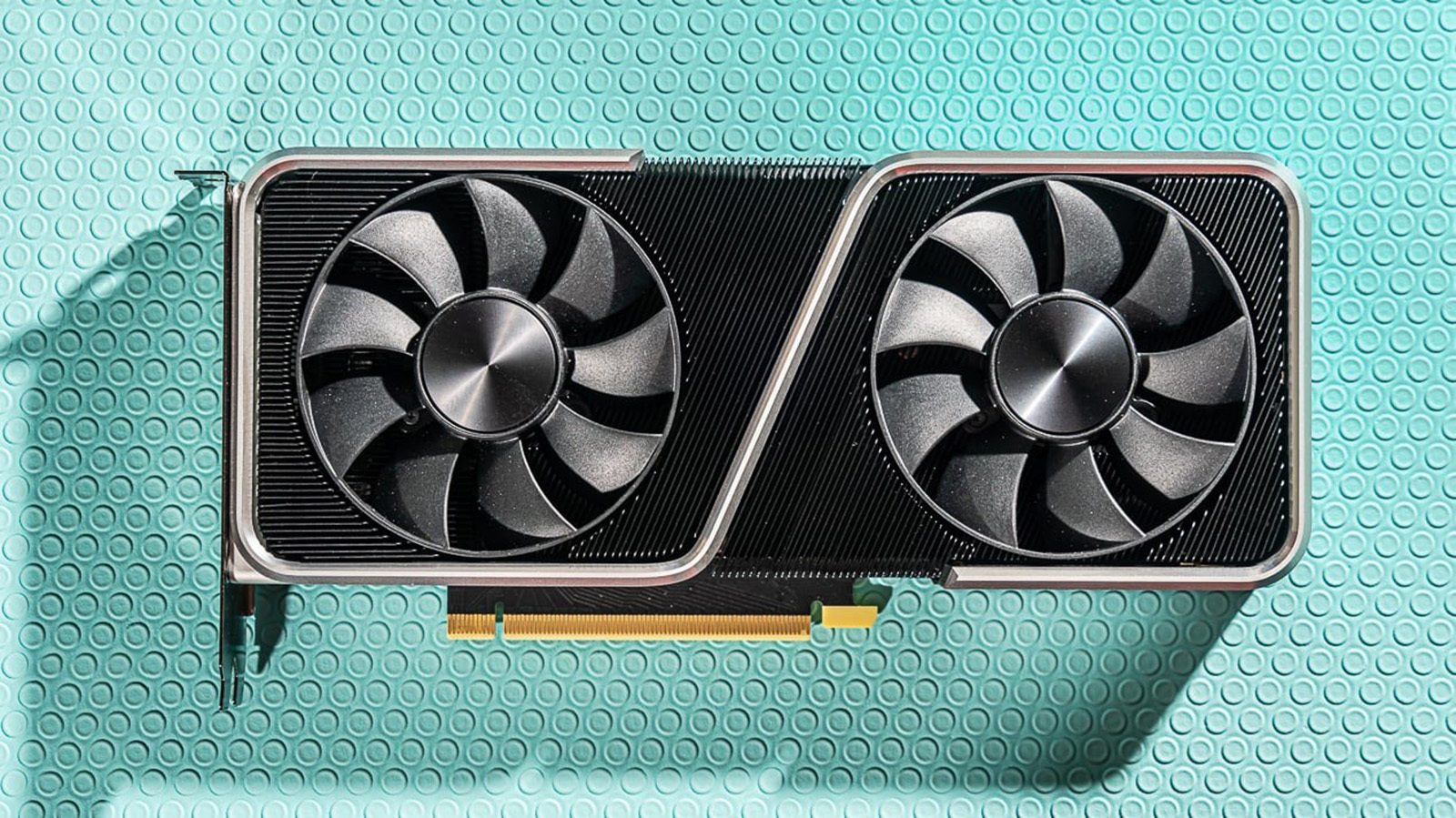

If your graphics card isn’t delivering the kind of performance you expect in games or creative applications, you might be wondering if it’s time to upgrade or overclock. But overclocking isn’t the only way to squeeze more power from your GPU. In fact, there are many safe, simple, and effective methods to improve GPU performance without touching clock speeds or voltages.
Whether you’re using an entry-level GPU or a mid-range card that’s starting to struggle with modern titles, the strategies outlined in this guide can help you optimize your system for smoother gameplay and better visuals—without risking stability or lifespan.
1. Update Your GPU Drivers
Table of Contents
Why It Matters:
Graphics drivers are the software that lets your operating system and games talk to your GPU. Outdated drivers can result in poor performance, stuttering, bugs, and even crashes.
What to Do:
-
For NVIDIA GPUs: Use GeForce Experience or download the latest drivers from NVIDIA’s website.
-
For AMD GPUs: Use the Adrenalin Software Suite or get the latest drivers from AMD.com.
-
Always choose “clean installation” or factory reset option to remove old settings that may be causing issues.
Driver updates often include game-specific optimizations and bug fixes, which can immediately improve frame rates and stability.
2. Optimize In-Game Settings
Why It Matters:
Many modern games ship with settings cranked up to ultra by default, assuming you have a high-end GPU. Even powerful cards can struggle if settings are poorly optimized.
What to Do:
-
Lower anti-aliasing, shadow quality, ambient occlusion, and volumetric effects—these are typically the most GPU-intensive.
-
Use medium to high settings instead of ultra to free up resources.
-
Disable unnecessary features like motion blur, film grain, or depth of field unless you prefer them for aesthetics.
You can often increase FPS by 20–50% just by adjusting these key visual settings, especially at higher resolutions like 1440p.
3. Enable Hardware-Accelerated GPU Scheduling (Windows 10/11)
Why It Matters:
This Windows feature allows your GPU to manage its own memory more efficiently, which can reduce input lag and improve performance slightly in GPU-bound scenarios.
What to Do:
-
Open Settings > System > Display.
-
Click Graphics Settings.
-
Toggle Hardware-accelerated GPU scheduling to On.
-
Restart your PC.
This change won’t dramatically boost FPS, but it can improve responsiveness and smoothness—especially in newer games.
4. Use Game-Specific Performance Enhancers
Why It Matters:
Many GPUs and games support built-in performance boosters like DLSS, FSR, or XeSS, which render at a lower resolution and upscale with minimal loss of quality.
What to Do:
-
NVIDIA users: Enable DLSS 2 or DLSS 3 in supported games.
-
AMD users: Turn on FSR 2.0 for better performance without sacrificing image clarity.
-
Intel users: Use XeSS where supported.
These features can double your FPS in some games while maintaining near-native image quality, especially at 1440p or 4K.
5. Tweak Power Settings for Maximum Performance
Why It Matters:
By default, Windows power plans often favor energy savings, which can throttle your GPU under load.
What to Do:
-
Go to Control Panel > Power Options.
-
Select High Performance or Ultimate Performance (available in Windows Pro or via command line).
-
Ensure your GPU control panel is also set to maximum performance:
-
NVIDIA: Open NVIDIA Control Panel → Manage 3D Settings → Power Management Mode → Prefer Maximum Performance.
-
AMD: Use Adrenalin Software → Gaming tab → Adjust Performance Profile to “Turbo” or “Custom.”
-
This ensures your GPU gets the power it needs without artificial restrictions.
6. Clean Out Dust and Improve Cooling
Why It Matters:
A GPU running hot will throttle its performance to avoid damage. If your temperatures climb above 80–85°C during load, you’re losing performance.
What to Do:
-
Open your case and gently clean dust from fans and heatsinks using compressed air.
-
Ensure adequate airflow: at least one intake and one exhaust fan.
-
Replace thermal paste on older GPUs if you’re comfortable with hardware maintenance.
-
Consider repositioning cables or upgrading your case fans if airflow is poor.
Keeping your GPU cool not only helps performance but also extends its lifespan.
7. Reduce Background Applications and Processes
Why It Matters:
Unused apps in the background can steal CPU, GPU, and RAM resources—especially overlays, streaming apps, or browser tabs.
What to Do:
-
Use Task Manager to end unnecessary background processes.
-
Disable overlays like Discord, Steam, GeForce Experience, or Razer Synapse unless needed.
-
Close browsers, especially Chrome tabs that may use hardware acceleration.
-
Use tools like MSI Afterburner, Process Lasso, or Autoruns to manage startup apps and background services.
Your GPU should focus on the game—not dozens of unused apps.
8. Optimize Resolution and Display Settings
Why It Matters:
Rendering at native 4K or even 1440p puts a significant load on your GPU. Many players don’t realize they can get better FPS by adjusting resolution without compromising experience.
What to Do:
-
Lower your in-game resolution to 1080p if you’re struggling at 1440p or 4K.
-
Use dynamic resolution scaling where available.
-
Disable V-Sync unless you experience screen tearing.
-
Set your display’s refresh rate correctly in Windows settings (e.g., 144Hz instead of 60Hz).
Resolution scaling or FSR/DLSS will help retain clarity even when not using native res.
9. Use Game Mode in Windows 10/11
Why It Matters:
Windows Game Mode prioritizes game processes by limiting background system activity and updates.
What to Do:
-
Go to Settings > Gaming > Game Mode.
-
Make sure it’s enabled.
This doesn’t offer a massive boost, but it improves frame time consistency, reducing stutters and frame drops in some games.
10. Keep Your Operating System Lean and Updated
Why It Matters:
An outdated or bloated OS can cause delays, bugs, or compatibility issues that hinder GPU performance.
What to Do:
-
Keep Windows updates current.
-
Run periodic disk cleanup or use tools like CCleaner.
-
Defragment HDDs (not SSDs).
-
Disable animations and transparency effects in Windows settings for a small boost in older machines.
A streamlined operating system allows your GPU to operate with fewer software bottlenecks.
Monitor Your GPU Performance
Why It Matters:
You can’t improve what you don’t measure. Keeping an eye on temperatures, clock speeds, and usage helps you detect issues early.
Tools to Use:
-
MSI Afterburner: Real-time monitoring and fan control.
-
GPU-Z: Detailed GPU specs and load metrics.
-
HWMonitor: Track overall system temperatures and voltages.
-
Radeon Adrenalin / GeForce Experience: Built-in monitoring and tuning tools.
Monitoring helps you understand what’s holding your system back—whether it’s the GPU, CPU, VRAM, or even power delivery.
Final Thoughts
Overclocking isn’t the only solution for improving your GPU’s performance. In fact, many gamers overlook simple optimizations that can yield huge benefits. From adjusting in-game settings and keeping your drivers current to improving airflow and minimizing background apps, each of the tips above can help you unlock better frame rates, smoother gameplay, and more responsive visuals—without increasing heat, voltage, or risk.
To recap, here are the key steps:
-
Update drivers regularly.
-
Optimize in-game graphics settings.
-
Enable GPU scheduling.
-
Use DLSS, FSR, or XeSS where available.
-
Maximize power settings.
-
Clean dust and improve cooling.
-
Close unnecessary background processes.
-
Adjust resolution and refresh rate.
-
Enable Game Mode.
-
Keep your OS lean and up to date.
Take a few minutes to go through these tweaks, and you might be surprised how much performance your current GPU still has to offer—no overclocking required.