


A smooth and enjoyable gaming experience depends on your hardware working together efficiently. One common issue that disrupts this harmony is bottlenecking. In particular, GPU bottlenecking can cripple your system’s ability to maintain consistent frame rates, cause stuttering, and prevent you from getting the most out of your graphics card.
In this guide, we’ll break down what GPU bottlenecking is, how to detect it, and—most importantly—how to fix it for optimal performance.
What Is GPU Bottlenecking?
Table of Contents
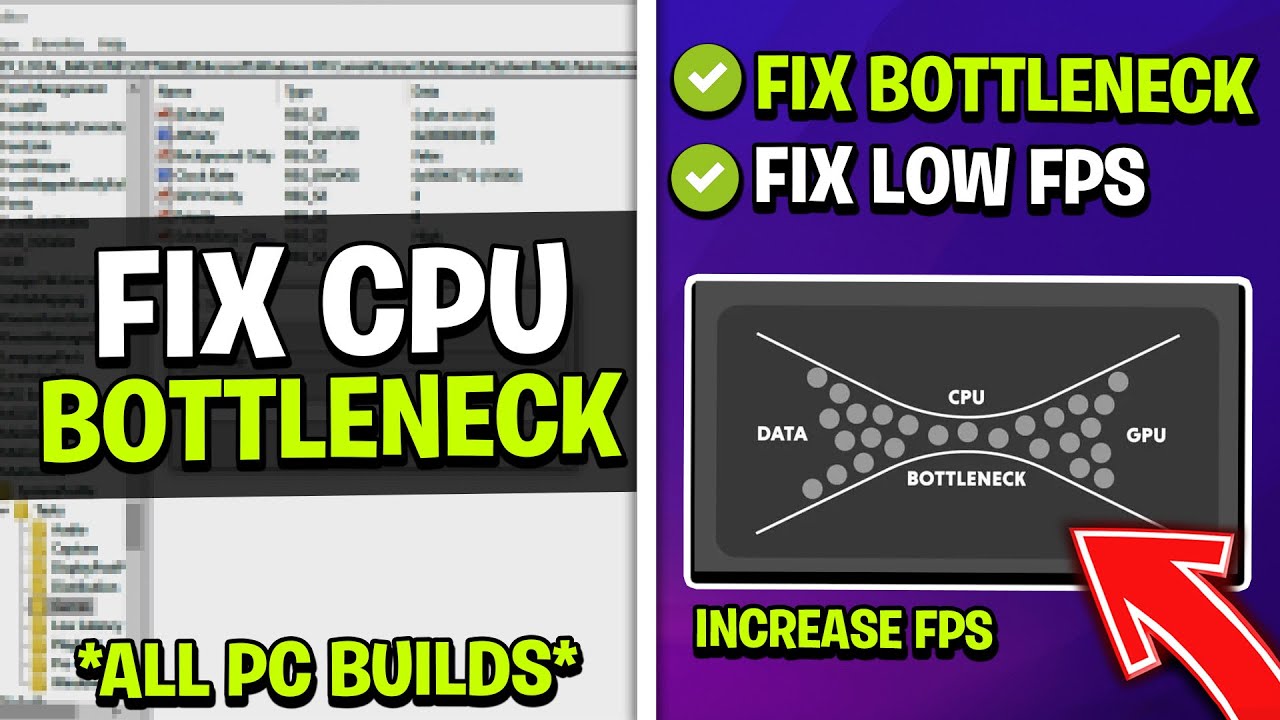
A bottleneck occurs when one component in your system is significantly weaker or overburdened compared to others, limiting overall performance. GPU bottlenecking happens when your graphics card is operating at or near 100% usage, while other components like the CPU, RAM, or storage are underutilized.
This can lead to poor frame rates, slow rendering, and overheating, especially in graphically demanding games or high-resolution settings.
Signs of a GPU Bottleneck
Before diving into solutions, you need to confirm that your GPU is indeed the source of the problem. Here are some common signs of GPU bottlenecking:
-
High GPU Usage (100%) while CPU usage remains low (under 70%)
-
Frame drops or stuttering in visually demanding scenes
-
Overheating GPU temperatures (above 85°C under load)
-
Low frame rates, despite having a high-end CPU and fast RAM
-
Fan noise ramping up frequently during gameplay
You can use monitoring tools such as MSI Afterburner, HWiNFO, or Task Manager to track GPU and CPU usage during gameplay.
Step-by-Step Fixes for GPU Bottlenecking
Once you’ve confirmed that GPU bottlenecking is the issue, here are actionable ways to fix or reduce its impact.
1. Lower In-Game Graphics Settings
One of the fastest and most effective fixes is to reduce the strain on your GPU by adjusting your game’s graphics settings:
-
Lower resolution from 4K to 1440p or 1080p
-
Reduce or turn off anti-aliasing, shadows, and ambient occlusion
-
Disable ray tracing and motion blur
-
Lower texture and effect quality
These settings directly affect the GPU load. Making adjustments can lower your GPU usage and improve performance.
2. Enable Hardware-Accelerated Upscaling (DLSS, FSR, XeSS)
Modern upscaling technologies like DLSS (NVIDIA), FSR (AMD), or XeSS (Intel) help reduce the rendering resolution internally while maintaining a high-quality image.
By enabling these technologies, you reduce GPU workload while still enjoying high frame rates and good visuals.
3. Use Frame Rate Caps
When your GPU tries to push frame rates beyond what your monitor supports, it can run unnecessarily hard.
To reduce GPU strain:
-
Enable V-Sync or G-Sync/Freesync
-
Use an FPS limiter or set a custom frame rate cap
-
Match your frame rate to your monitor’s refresh rate (e.g., 60Hz = 60 FPS cap)
This keeps the GPU from overworking and can stabilize performance.
4. Optimize GPU Drivers
Outdated or poorly optimized GPU drivers can increase bottlenecking. To fix this:
-
Update to the latest drivers from NVIDIA, AMD, or Intel
-
Use clean installation options to avoid leftover settings
-
Occasionally use DDU (Display Driver Uninstaller) for a complete reset
Driver updates often bring performance boosts, especially for newer titles.
5. Enable GPU Scheduling and Hardware Acceleration
Windows 10 and 11 offer features to optimize GPU performance:
-
Hardware-Accelerated GPU Scheduling (HAGS) reduces latency and improves efficiency
-
Game Mode in Windows can prioritize resources for gaming
-
In some GPUs, Resizable BAR (Base Address Register) can boost performance
These features are accessible through system settings or BIOS (for Resizable BAR).
6. Improve Your Case Cooling and Airflow
A hot GPU is an inefficient GPU. If your graphics card is running at or above 85°C consistently, it’s likely thermal throttling, which reduces its performance.
To address this:
-
Add or improve case fans (intake and exhaust)
-
Reapply thermal paste if your GPU is older
-
Clean out dust and debris
-
Consider undervolting to reduce heat while maintaining performance
Cooler GPUs can boost clocks more consistently and avoid thermal limitations.
7. Overclock Your GPU
If your GPU is the clear bottleneck and cooling isn’t an issue, overclocking may help:
-
Use tools like MSI Afterburner to raise core and memory clocks
-
Monitor stability with stress tests (Heaven Benchmark, 3DMark)
-
Gradually increase clocks to avoid crashes
While it won’t turn a mid-tier card into a flagship, overclocking can give you a small but noticeable performance bump.
8. Check for Background Applications
GPU resources can be consumed by other programs running in the background, including:
-
Web browsers (especially with media open)
-
Discord overlays or game capture tools
-
GPU-intensive tasks like video rendering
Use Task Manager or Resource Monitor to see what’s running, and shut down unnecessary apps before launching a game.
9. Upgrade Your Monitor Settings
Sometimes your monitor settings or refresh rate may be mismatched, making your GPU work harder than it should:
-
Set your display to the native refresh rate (e.g., 144Hz or 60Hz)
-
Turn off HDR if your system struggles with it
-
Avoid running desktop resolution at 4K if your games are at 1080p
These small tweaks can help your GPU focus resources where they matter most—in-game.
10. Consider a GPU Upgrade
If all other fixes fail, and your GPU is still the weakest link in your system, it might be time for a hardware upgrade.
Some signs you need a new GPU:
-
Your card can’t keep up with modern titles, even at low settings
-
It lacks support for DLSS, FSR, or modern APIs
-
It has less than 8GB of VRAM, limiting future compatibility
-
It thermal throttles despite good cooling
In 2025, strong options for mid-range upgrades include the RTX 4060, RX 7600 XT, or RTX 4070 Super, depending on your budget and resolution goals.
Rebalance Your System
Sometimes, GPU bottlenecking is actually caused by an imbalance elsewhere in your system. Check the following:
-
CPU: If you’re using a low-end CPU with a high-end GPU, you may experience “false” GPU bottlenecking due to bad system-level coordination.
-
RAM: Less than 16GB can hurt modern games. Dual-channel memory also improves performance.
-
Motherboard BIOS: Old BIOS firmware can prevent new GPUs from running optimally.
Make sure your entire system is balanced to avoid introducing new bottlenecks after fixing your GPU limitations.
Final Thoughts
Fixing GPU bottlenecking requires both understanding the symptoms and taking a layered approach. From adjusting in-game settings and enabling upscaling, to improving airflow and eventually upgrading your graphics card, there are multiple ways to alleviate the problem.
Start with software and configuration tweaks, then move on to thermal and hardware checks. If none of these resolve your performance issues, it may be time to consider a GPU upgrade that better matches your system’s capabilities.
A well-optimized system will not only improve FPS but also ensure a smoother, more responsive gaming experience, whether you’re playing competitive shooters or graphically intensive open-world titles.