
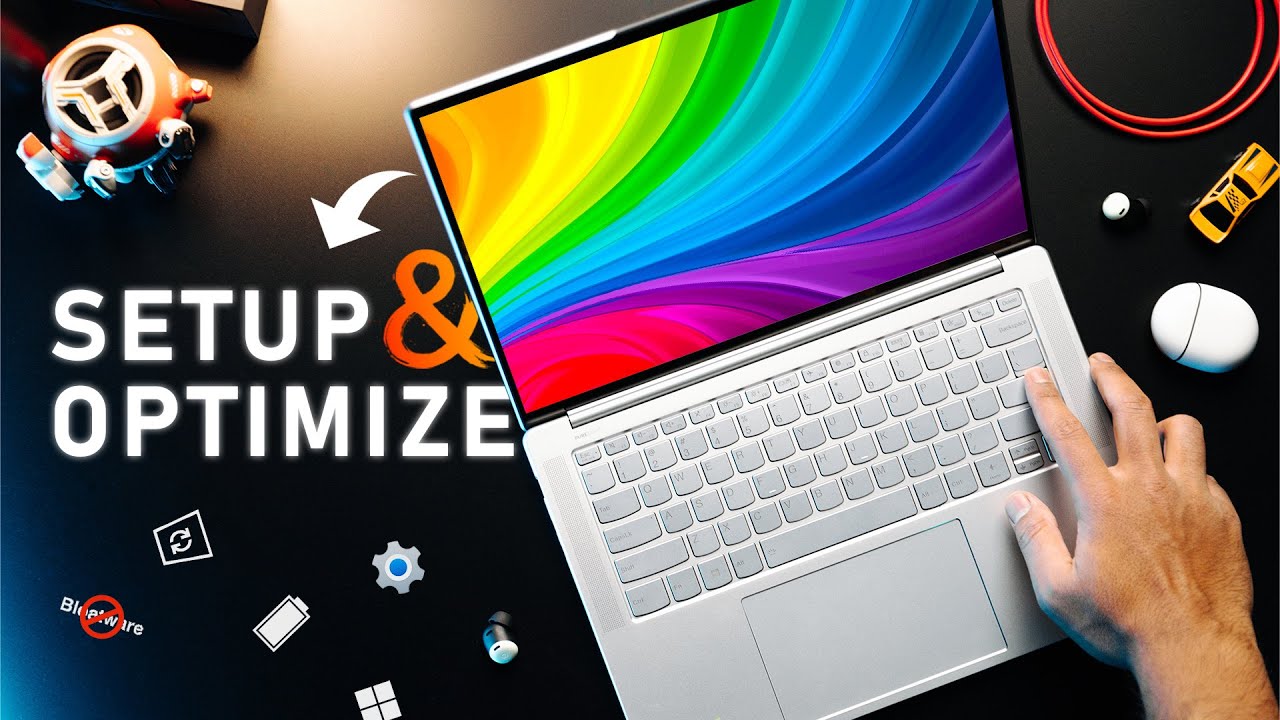

Gaming laptops in 2025 are more powerful and portable than ever. With the latest GPUs, high-refresh-rate displays, and efficient processors, even mid-tier gaming laptops can handle modern titles with ease. But performance out of the box is rarely perfect. Thermal limits, background processes, outdated drivers, and poor power settings can all hold your system back.
Fortunately, with a few smart tweaks, you can significantly improve frame rates, reduce lag, and extend the lifespan of your gaming laptop. This guide walks you through how to optimize your gaming laptop for maximum performance—whether you’re looking to boost frame rates in AAA games, reduce system lag, or ensure your system runs smoothly under load.
1. Update Your GPU Drivers Regularly
Table of Contents
Your graphics card is the most critical component for gaming, and its performance is heavily influenced by drivers. Manufacturers like NVIDIA, AMD, and Intel release regular driver updates to improve performance, fix bugs, and optimize newer titles.
How to update:
-
For NVIDIA, use the GeForce Experience app to automatically check for updates.
-
For AMD, use the Adrenalin software suite.
-
For Intel Arc or integrated GPUs, check the Intel Driver & Support Assistant.
Make a habit of checking for new drivers monthly or before installing a new game.
2. Set Your Laptop to High Performance Mode
Many gaming laptops default to balanced or power-saving power plans to extend battery life. This can limit CPU and GPU power and cause frame drops during gaming.
How to change power settings (Windows 11/10):
-
Go to Settings > System > Power & Battery.
-
Click on Power Mode, and select Best Performance.
-
Alternatively, open Control Panel > Power Options and select the High Performance plan.
Some laptops also come with custom power settings in preinstalled software (e.g., ASUS Armoury Crate, MSI Center, Lenovo Vantage). Always choose the performance or gaming mode when playing.
3. Use Your Laptop While Plugged In
Gaming laptops significantly reduce performance while running on battery power, even in high-performance mode. To avoid power limitations:
-
Always plug in your charger during gaming sessions.
-
Some laptops have GPU Boost features that only activate when charging.
Running intensive games on battery can also reduce battery lifespan, so it’s best to game on AC power whenever possible.
4. Clean and Optimize Startup Programs
Background processes, apps, and services running during startup can hog valuable system resources, especially RAM and CPU cycles.
How to disable unnecessary startup programs:
-
Press Ctrl + Shift + Esc to open Task Manager.
-
Go to the Startup tab.
-
Right-click and disable programs you don’t need launching at boot (like Skype, OneDrive, Discord, etc.).
This will free up resources and reduce system lag. Be careful not to disable critical drivers or security apps.
5. Keep Your Laptop Cool
Thermal performance is crucial. Heat buildup can cause thermal throttling, where the CPU or GPU reduces speed to prevent damage. That means fewer frames, lag spikes, and shorter component life.
Tips to improve cooling:
-
Use a cooling pad to increase airflow under the laptop.
-
Clean dust from vents and fans every few months using compressed air.
-
Make sure the laptop is on a hard, flat surface, not a bed or cushion.
-
Use built-in software (like MSI Afterburner or Armoury Crate) to monitor CPU/GPU temps.
Ideal temperatures:
-
GPU: under 85°C during load
-
CPU: under 90°C during gaming
If temperatures are consistently high, consider undervolting (explained below) or repasting thermal compound—though the latter should be done only by advanced users or professionals.
6. Enable NVIDIA or AMD Game Mode Settings
Both major GPU vendors offer settings designed to improve gaming performance.
NVIDIA Control Panel:
-
Open NVIDIA Control Panel > Manage 3D settings.
-
Set Power management mode to Prefer maximum performance.
-
Set Texture filtering to High performance.
-
You can also add per-game settings under “Program Settings.”
AMD Radeon Settings:
-
Enable Radeon Boost and Radeon Anti-Lag for supported games.
-
Turn on Gaming Mode in the Adrenalin software.
These settings help ensure your GPU uses its full capabilities when needed.
7. Undervolt Your CPU or GPU (Advanced Optimization)
Undervolting helps reduce heat and power usage without sacrificing performance—and sometimes even improves it by preventing thermal throttling.
Benefits of undervolting:
-
Lower temperatures
-
Quieter fans
-
More consistent frame rates
Tools:
-
Intel XTU (Intel CPUs)
-
AMD Ryzen Master (Ryzen CPUs)
-
Throttlestop (more control for advanced users)
Note: Undervolting can void warranties or cause instability if done incorrectly. Start with small values and stress test the system. If you’re unsure, skip this step or seek help from an expert.
8. Optimize In-Game Settings
Many games auto-detect hardware and set default settings. These often prioritize visuals over frame rate. Customizing these settings can dramatically boost performance.
Key settings to adjust:
-
Resolution: Lowering from 1440p to 1080p can increase FPS by 30–50%.
-
V-Sync: Disable if you’re getting tearing or high input latency.
-
Anti-Aliasing: Lower or turn off for better performance.
-
Shadows, Textures, and Reflections: Medium settings often offer the best quality-to-performance ratio.
-
DLSS or FSR: Use AI upscaling features if available (DLSS for NVIDIA, FSR for AMD) to increase FPS without noticeable quality loss.
Benchmark your game after each change to find the best combination of visuals and smoothness.
9. Use an External Monitor with Higher Refresh Rates (Optional)
Some gaming laptops have good internal screens, but for competitive gamers, using an external 144Hz or 240Hz monitor can improve gameplay experience, especially in fast-paced titles like Valorant, CS2, or Fortnite.
Additionally, external monitors allow better cooling by letting the laptop lid stay open (improving airflow), while also reducing the workload on internal displays.
10. Free Up Disk Space and Defragment
A cluttered or nearly full SSD can lead to performance drops.
Maintenance Tips:
-
Delete old game files, screenshots, or unused software.
-
Use Windows Storage Sense to auto-clear temporary files.
-
If you use an HDD (rare in modern laptops), defragment it regularly.
-
Keep at least 15–20% of your SSD free to avoid slowdowns.
For large games, consider installing them on a secondary SSD if possible, so they don’t affect system performance.
1. Keep BIOS and Firmware Updated
Manufacturers occasionally release BIOS or firmware updates that improve system stability, fan curves, power delivery, or compatibility with new games and hardware.
Visit your laptop manufacturer’s support site and look for BIOS updates. Make sure to follow the update instructions carefully—BIOS updates carry some risk if interrupted.
12. Disable Background Services While Gaming
Apps like Google Chrome, Microsoft OneDrive, or background recorders can eat CPU and memory while you play.
Use Game Mode (enabled by default in Windows 11) and consider using tools like Razer Cortex or MSI Gaming Mode to temporarily disable unnecessary background services when launching games.

Final Thoughts
Optimizing your gaming laptop isn’t just about chasing the highest frame rates. It’s about creating a system that’s consistent, responsive, and efficient. A well-optimized laptop runs cooler, quieter, and smoother, allowing you to get the most out of the hardware you’ve invested in.
To recap, here’s a simplified checklist for optimizing performance:
-
Keep GPU and system drivers updated
-
Use high-performance power mode
-
Plug in while gaming
-
Reduce startup and background apps
-
Improve cooling and monitor temperatures
-
Tweak in-game settings smartly
-
Use GPU-specific enhancements like DLSS or FSR
With a few adjustments and regular maintenance, your gaming laptop will stay fast, cool, and game-ready for years to come.