
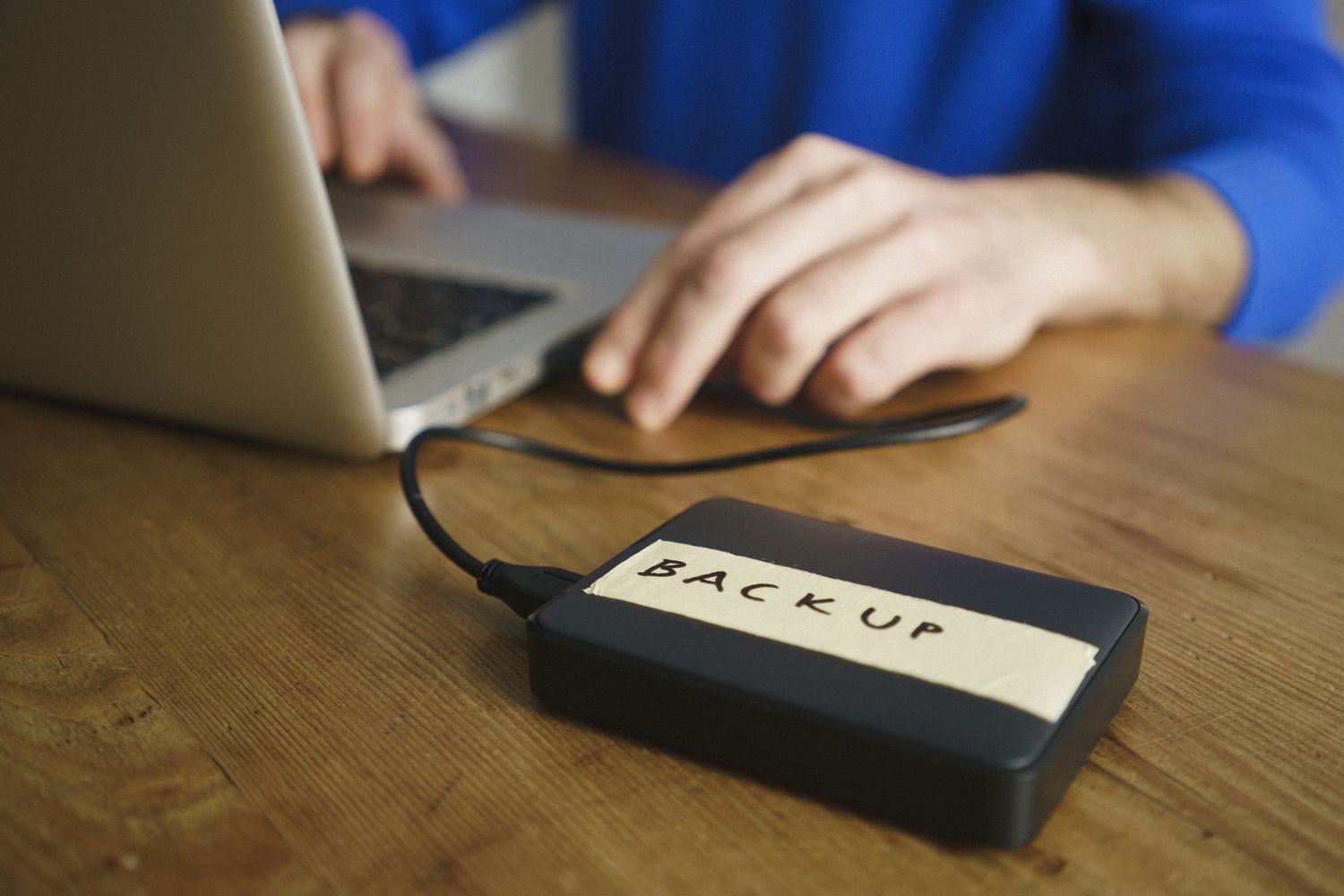

In today’s digital age, our computers hold everything from precious family photos to important business documents. Yet, many people don’t back up their data—until something goes wrong. Hard drives fail, malware strikes, and accidents happen. That’s why creating a full backup of your PC to an external hard drive is not just smart—it’s essential.
This guide walks you through every step of backing up your entire PC, whether you’re using Windows 10, Windows 11, or newer systems. You’ll learn how to protect your files, system settings, and even applications so you can restore everything if disaster strikes.
Why Back Up Your Entire PC?
Table of Contents
Backing up your entire PC means creating a complete copy of your operating system, installed programs, personal files, settings, and system configurations. This is known as a system image or full backup.
Reasons to create a full PC backup include:
-
Recovering quickly from hard drive failures
-
Reverting to a previous working state after a virus or ransomware attack
-
Moving your entire system to a new computer or drive
-
Restoring all files after accidental deletion or corruption
A regular backup plan is your safety net—helping you recover in minutes instead of days.
What You’ll Need
Before starting, make sure you have the following:
-
External Hard Drive
Choose a drive with enough space to hold your PC’s data. Ideally, it should be larger than your internal drive (e.g., 1TB or 2TB). USB 3.0 drives offer faster transfer speeds. -
Backup Software or Built-in Tools
You can use the built-in Windows tools or third-party programs. This guide covers both.
Option 1: Back Up Your Entire PC Using Windows Built-in Tools
Windows offers native tools for creating full system backups. These tools are free, easy to use, and don’t require additional software.
Step 1: Connect the External Hard Drive
Plug your external hard drive into your computer. Make sure it has enough free space. Windows will detect it automatically.
Step 2: Open the Backup Tool
For Windows 11 and Windows 10:
-
Open the Control Panel.
-
Click on Backup and Restore (Windows 7).
(Yes, this tool is still included and works on newer versions.) -
On the left-hand panel, select Create a system image.
Step 3: Choose the Backup Location
When prompted, select On a hard disk, and choose your external hard drive from the list of available drives. Click Next.
Step 4: Select What to Back Up
By default, Windows includes all system drives. That means your C: drive and any partitions needed to boot your system. You can include other drives if you wish.
Click Next, then Start backup to begin the process. The time it takes will depend on the size of your data and the speed of your drive.
Step 5: Create a System Repair Disc (Optional)
After the backup completes, Windows will ask if you want to create a system repair disc. While not required, it’s a good idea—especially if you don’t have a bootable USB recovery drive.
If your computer doesn’t have a CD/DVD writer, you can skip this step and use a Windows recovery USB later.
Option 2: Use File History for Continuous Backup (Files Only)
File History is another built-in feature in Windows that automatically backs up your personal files (documents, pictures, music, etc.) at regular intervals.
To Set Up File History:
-
Go to Settings > Update & Security > Backup.
-
Click Add a drive, then select your external hard drive.
-
Turn on Automatically back up my files.
Windows will back up files every hour by default. You can change the frequency and select which folders to include or exclude.
Note: File History does not back up system files or installed programs. It is best used alongside a full image backup.
Option 3: Using Third-Party Backup Software
Several third-party tools offer enhanced features for creating backups. They often provide scheduling, incremental backups, encryption, and cloud options.
Here are some popular options:
-
Macrium Reflect Free: Great for creating system images.
-
Acronis Cyber Protect: Full-featured with cloud backup.
-
EaseUS Todo Backup: User-friendly with flexible options.
-
Paragon Backup & Recovery: Offers differential backups and rescue media.
These tools allow more customization than the built-in options and are especially useful for advanced users.
General Steps with Third-Party Software:
-
Install your chosen backup software.
-
Launch the app and select Disk Backup or System Backup.
-
Choose the source drive (your C: or system partition).
-
Select your external hard drive as the destination.
-
Set backup schedule if needed.
-
Click Start Backup.
Make sure to verify the backup upon completion and store the external drive in a safe location.
How Often Should You Back Up?
The frequency of your backups depends on how often you add or change data on your PC. Here are general recommendations:
-
Daily: For work PCs or systems with frequent updates
-
Weekly: For most users
-
Monthly: At minimum, especially for full system images
You can schedule backups in most tools or set a weekly reminder to do it manually.
Tips for a Successful Backup
-
Label your backups: Add the date to your backup folder name to track versions.
-
Use multiple backups: Keep one copy on an external drive and another in cloud storage for extra safety.
-
Test your backups: Try restoring a few files or booting from your system image to ensure it works.
-
Disconnect the external drive after backup: This prevents it from being affected by malware or power issues.
How to Restore from a Backup
In case your system fails, restoring your full backup can save hours or days of recovery time.
To Restore a System Image:
-
Boot into Advanced Startup Options. You can do this by holding Shift while clicking Restart from the Start Menu.
-
Go to Troubleshoot > Advanced Options > System Image Recovery.
-
Plug in your external hard drive if it’s not already.
-
Follow the prompts to restore the backup.
Your system will be rolled back to the state it was in when the image was created—apps, settings, and all files included.
Common Questions
1. Will backing up my PC delete anything?
No. A backup is a copy of your data. Nothing is deleted during the process.
2. Can I keep using my PC during backup?
Yes, though performance may be slower. It’s best to avoid major system updates during a backup.
3. How long does a full backup take?
It depends on the size of your system and the speed of your external drive. It can take anywhere from 30 minutes to several hours.
4. Is it safe to keep backups on the same drive as my PC?
No. If your PC fails or gets infected, that drive could also be compromised. Always use a separate external drive.
:max_bytes(150000):strip_icc()/GettyImages-962574588-d07e325236e84e23971c5f6d5079775e.jpg)
Final Thoughts
Backing up your entire PC may seem like a tedious task, but it’s one of the most important habits you can build as a computer user. One hour spent backing up can save you days of stress, lost work, or even permanent data loss. Whether you use Windows’ built-in tools or third-party software, the key is consistency.
Invest in a reliable external hard drive, set a schedule, and test your backups occasionally. With a solid backup plan, you can face system crashes, hardware failures, or cyberattacks with confidence.
Start today—your future self will thank you.